Create keys
Procedure
- Generate a merchant RSA public/private key pair.
- Enter the merchant public key in the VellPay merchant console and store the platform public key.
- Sign requests with the merchant private key and verify callbacks with the platform public key.
Step 1: Generate the merchant key pair
Option 1: Use the command line
VellPay uses RSA keys for request signing and response verification. Use OpenSSL on a trusted device to generate a PKCS8 private key and corresponding public key.
openssl genpkey -algorithm RSA -out merchant_private_key.pem -pkeyopt rsa_keygen_bits:1024openssl rsa -pubout -in merchant_private_key.pem -out merchant_public_key.pemWindows users can run the same commands in Command Prompt or PowerShell. On macOS, run brew install openssl first if OpenSSL is not installed.
The following files are generated:
merchant_private_key: merchant private key, store only on merchant servers.merchant_public_key: merchant public key, used to configure the VellPay application.
Option 2: Use a key-generation tool (recommended)
Open: online RSA key generator
Key length: 1024
Format: PKCS8
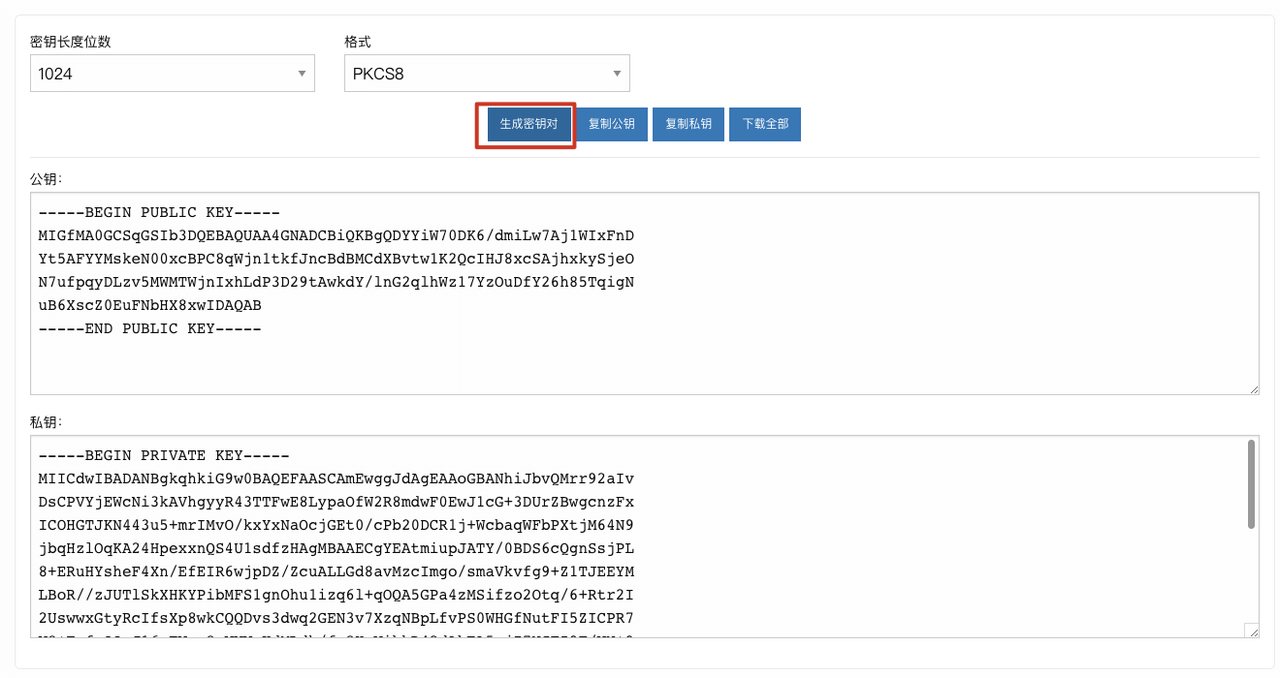
This produces a public key and a private key. Remove spaces and line breaks before use, store the private key securely, and use the public key in Step 2.
The merchant security team should generate keys in a trusted environment. Do not generate production keys on untrusted websites.
Step 2: Exchange public keys
- Sign in to the VellPay merchant console and open Merchant Center > Applications.
- If no application exists, select Add Application; otherwise open application settings.
- Select Exchange Public Key and complete identity verification as prompted.
- Enter the generated key content in Merchant Public Key.
- Copy and securely store the Platform Public Key for callback verification.
When entering the public key, remove the following header and footer lines, spaces, and line breaks:
-----BEGIN PUBLIC KEY----------END PUBLIC KEY-----Keys must be used as a pair. After regenerating merchant keys, update the merchant public key in the console.
Step 3: Integrate authentication
After exchanging keys, follow API authentication to generate the authorization request header and verify callback signatures with the platform public key.